Gaming Monitor Setup Guide
Learn how to set up and calibrate gaming monitors for better color, HDR, display refresh rate, Adaptive Sync, eye comfort, and smoother gameplay.
Why Gaming Monitor Setup Is More Than Plug-and-Play
A high-performance gaming monitor can look ordinary if it is not set up correctly. Many players upgrade from standard computer monitors to gaming displays expecting instant improvement, only to discover motion blur, dull colors, screen tearing, washed-out HDR, or a refresh rate still locked at 60Hz.
The problem is rarely the panel alone. Most visual issues come from incomplete configuration.
A proper gaming monitor setup affects:
- Image sharpness through native resolution and scaling
- Motion clarity through display refresh rate and response time
- Color accuracy through gamut, gamma, and color temperature
- Gameplay smoothness through Adaptive Sync and frame pacing
- Immersion through HDR, contrast, and brightness control
- Comfort through monitor height, distance, flicker reduction, and blue light control
Modern gaming monitors are no longer simple screens. They are performance tools. A good setup helps competitive players react faster, allows AAA games to look more cinematic, and gives creators a more reliable visual workspace.
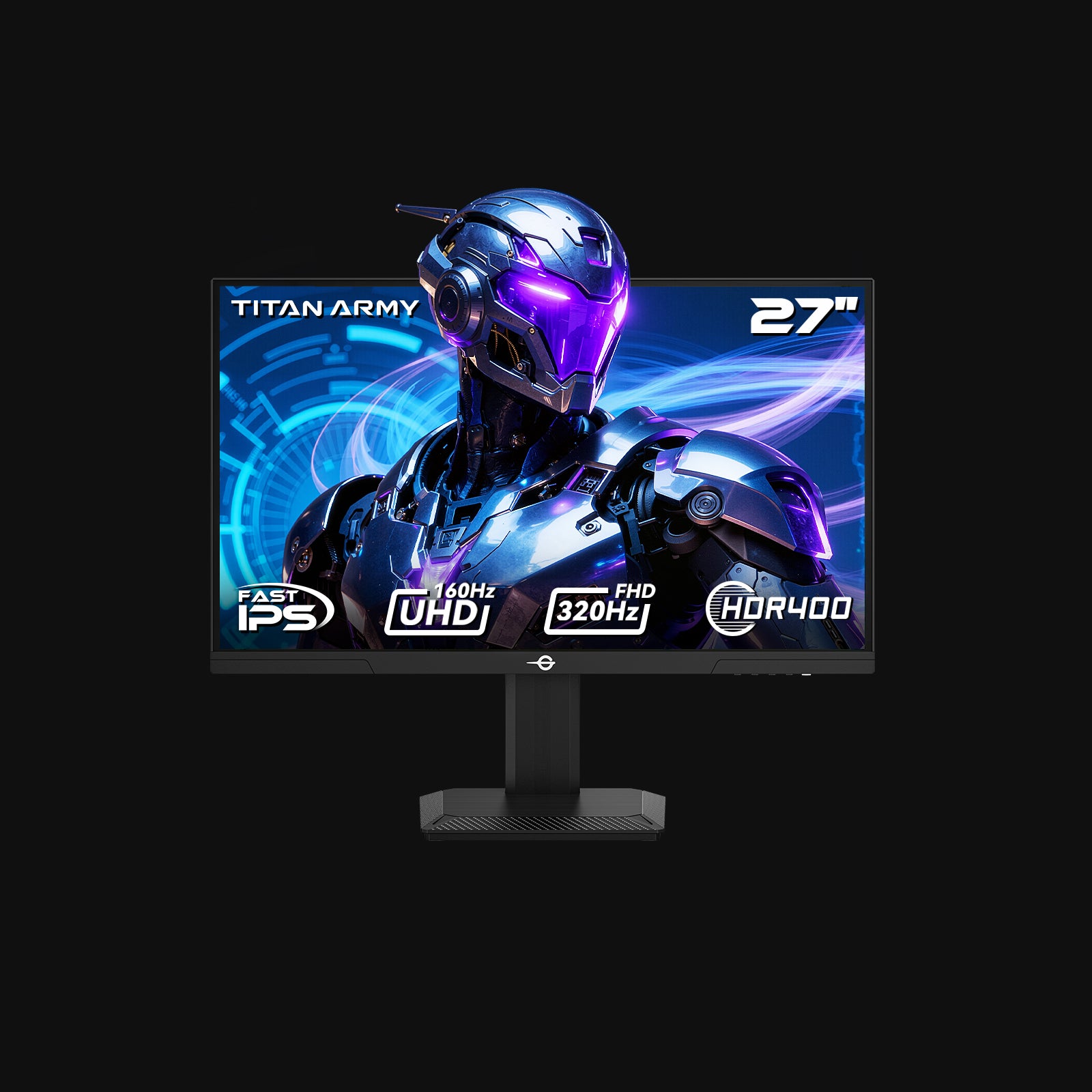
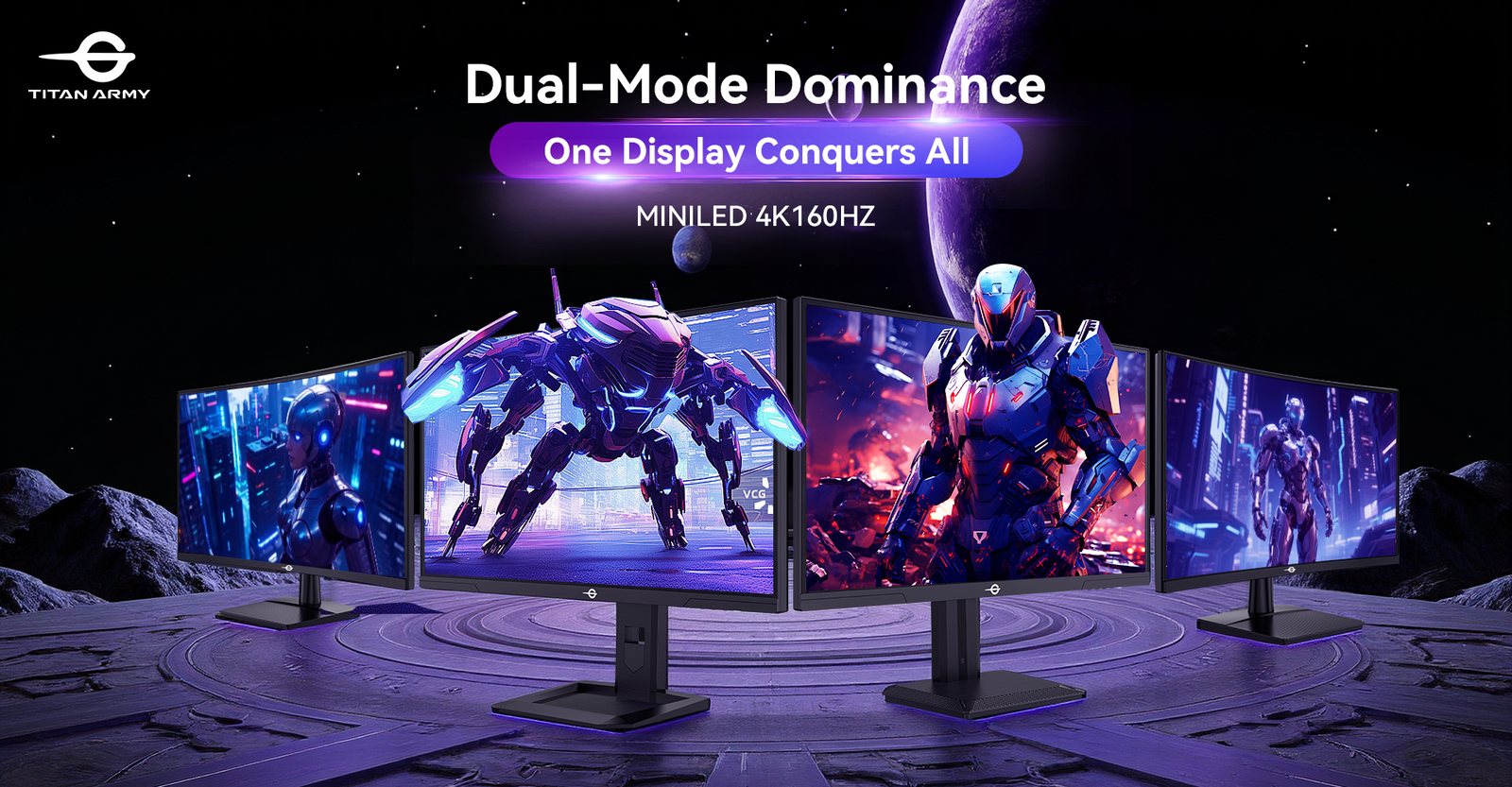
This is also why flexible monitors are gaining traction. The TITAN ARMY P2712V Gaming Monitor supports dual-mode switching between 3840×2160@160Hz and 1920×1080@320Hz, making it suitable for both visual fidelity and esports-level speed.
The “Clarity-Speed-Comfort” Calibration Framework
The easiest way to calibrate a gaming monitor is to avoid chasing one perfect preset. Instead, optimize around three priorities:
| Priority | What It Improves | Best Settings to Adjust |
|---|---|---|
| Clarity | Detail, text sharpness, image depth | Resolution, sharpness, contrast, HDR |
| Speed | Motion fluidity, reaction time, input feel | Display refresh rate, response time, Adaptive Sync |
| Comfort | Long-session visibility and eye protection | Brightness, blue light, flicker reduction, ergonomics |
Different games need different balances.
- Competitive FPS: Speed first, clarity second, comfort always maintained
- RPG and open-world games: Clarity first, color and HDR tuned carefully
- Racing and sports games: Speed and motion clarity are essential
- Content creation: Color accuracy and 4K detail matter most
- Daily use: Comfort and readability should be prioritized
This framework gives players a more practical approach than copying random settings from forums. The best gaming monitor settings should match the game, hardware, lighting conditions, and user preference.
Step 1: Position Your Gaming Monitor for Better Visibility
Before opening any settings menu, start with the physical setup. Poor placement can cause neck strain, inconsistent viewing angles, glare, and reduced image quality.
For most desks, position the gaming monitor:
- Around 60–80 cm from the eyes for a 27-inch screen
- With the top third of the display near eye level
- Directly in front of the seated position
- Slightly tilted if needed to reduce reflections
- Away from direct sunlight or strong backlighting
A 27-inch display is a strong size for PC gaming because it balances immersion and control. It is large enough for cinematic gameplay but not so large that players need to constantly move their head.
At 4K resolution, a 27-inch screen also delivers excellent pixel density. Text looks cleaner, textures appear sharper, and small interface details become easier to read.
Ergonomic adjustment improves more than comfort. It also helps keep the panel aligned with the eyes, which supports consistent color and brightness perception. The TITAN ARMY P2712V supports tilt from -5° to 20°, pivot adjustment, 100mm height adjustment, and 100×100mm VESA wall mounting, making it easier to create a stable and comfortable setup.
Better monitor positioning improves visibility before any software calibration begins.
Step 2: Use the Right Cable, Port, and GPU Settings
A gaming monitor cannot reach its maximum potential if the cable, port, or GPU setting limits bandwidth. This is one of the most common setup mistakes.
If a monitor supports high refresh rates, the connection must also support the required resolution and refresh combination. Otherwise, the display may default to a lower refresh rate or reduced color format.
Check these items first:
| Setup Item | Why It Matters |
|---|---|
| Cable type | Determines whether high resolution and high refresh rate can be transmitted |
| GPU output | Must support the target resolution and display refresh rate |
| Monitor input | Needs enough bandwidth for advanced modes |
| Operating system | May default to 60Hz after first connection |
| GPU control panel | May require manual refresh rate selection |
| Game settings | Some games use separate fullscreen refresh settings |
After connecting the monitor, confirm the refresh rate in:
- Windows Display Settings
- Advanced Display Settings
- NVIDIA Control Panel, AMD Software, or Intel Graphics Command Center
- In-game video settings
Many players buy 144Hz, 160Hz, 240Hz, or 320Hz gaming monitors but unknowingly play at 60Hz. Checking this setting takes less than one minute and can immediately improve motion smoothness.
Step 3: Set Native Resolution and Display Refresh Rate
Resolution and display refresh rate are the foundation of gaming monitor performance.
- Resolution controls how much detail appears on screen.
- Display refresh rate controls how many times per second the display updates.
- Frame rate depends on the GPU and game engine.
- Response time affects how clean moving objects appear.
For visual-rich games, 4K resolution provides:
- Sharper textures
- Cleaner edges
- More detailed environments
- Better readability in strategy games and RPGs
- Improved workspace for editing or streaming
For competitive gaming, a higher display refresh rate provides:
- Smoother camera movement
- Better target tracking
- Lower perceived latency
- Clearer motion during fast turns
- A more responsive feel
The TITAN ARMY P2712V is designed for this split with one-click dual-mode switching:
| Mode | Best Use Case | Main Benefit |
|---|---|---|
| 3840×2160@160Hz | AAA games, open-world titles, content creation, cinematic play | 4K clarity with smooth motion |
| 1920×1080@320Hz | FPS, MOBA, racing, esports training | Ultra-fast refresh for competitive responsiveness |
This dual-mode design solves a common problem: choosing between a 4K gaming monitor and an ultra-high-refresh esports display. With the P2712V, the setup can adapt to the game instead of forcing one compromise.

Step 4: Calibrate Brightness, Contrast, Gamma, and Sharpness
Factory settings are often too bright, too cool, or too saturated. They may look impressive in a store but feel harsh during actual gameplay.
A balanced calibration should improve detail without causing eye fatigue.
Recommended Starting Settings
| Setting | Suggested Starting Point | Calibration Goal |
|---|---|---|
| Brightness | 35–70% | Match room lighting |
| Contrast | 70–85% | Preserve highlight and shadow detail |
| Gamma | 2.2 | Balanced midtones for most PC use |
| Sharpness | Default or neutral | Avoid artificial edge halos |
| Color Temperature | 6500K / Normal / Warm | Natural white balance |
| Black Equalizer | Low to moderate | Improve visibility without flattening depth |
Use room lighting as the guide. In a dark room, lower brightness usually looks better and feels more comfortable. In a bright room, higher brightness may be necessary, but avoid pushing it so high that white areas lose detail.
A quick calibration check:
- White clouds should show texture, not solid white patches
- Dark corners should reveal objects without turning gray
- Text should look crisp but not over-sharpened
- Skin tones should look natural, not overly red or blue
- UI elements should be visible without glowing edges
The goal is not the brightest picture. The goal is a clean, readable, and consistent image.
Step 5: Optimize Color Accuracy for Games and Content Creation
Color performance is a major difference between ordinary computer monitors and advanced gaming monitors. Accurate color improves immersion, but it also matters for video editing, streaming, game capture, and digital content creation.
A gaming monitor with strong color performance should offer:
- Wide color gamut
- Stable viewing angles
- Accurate factory calibration
- Good grayscale balance
- Smooth gradients
- Consistent brightness across the panel
The TITAN ARMY P2712V uses a Fast IPS panel, designed to deliver faster pixel response than conventional IPS panels while maintaining wide viewing angles and strong color performance. Its color specifications include:
- ΔE<2 color accuracy
- 135% sRGB color volume
- 95% DCI-P3 color coverage
- 8-bit + FRC color depth
- 1.07 billion display colors
These details matter because modern games use advanced lighting, cinematic grading, particle effects, neon environments, and complex shadow design. Better color depth and wider gamut help these scenes feel more natural and immersive.

Suggested Color Modes by Scenario
| Scenario | Recommended Monitor Behavior |
|---|---|
| Competitive FPS | Clear visibility, fast refresh, controlled saturation |
| Open-world RPG | 4K resolution, cinematic color, balanced contrast |
| Horror games | Careful black level, not overly bright shadows |
| Racing games | High refresh rate, vivid color, strong motion clarity |
| Video editing | Accurate color mode, controlled brightness |
| Daily work | Eye comfort mode, moderate brightness |
The P2712V includes 12 smart scenario modes, allowing users to switch settings quickly for different game genres and visual preferences. This saves time and reduces the need to manually recalibrate for every use case.
Step 6: Enable Adaptive Sync to Reduce Tearing and Stutter
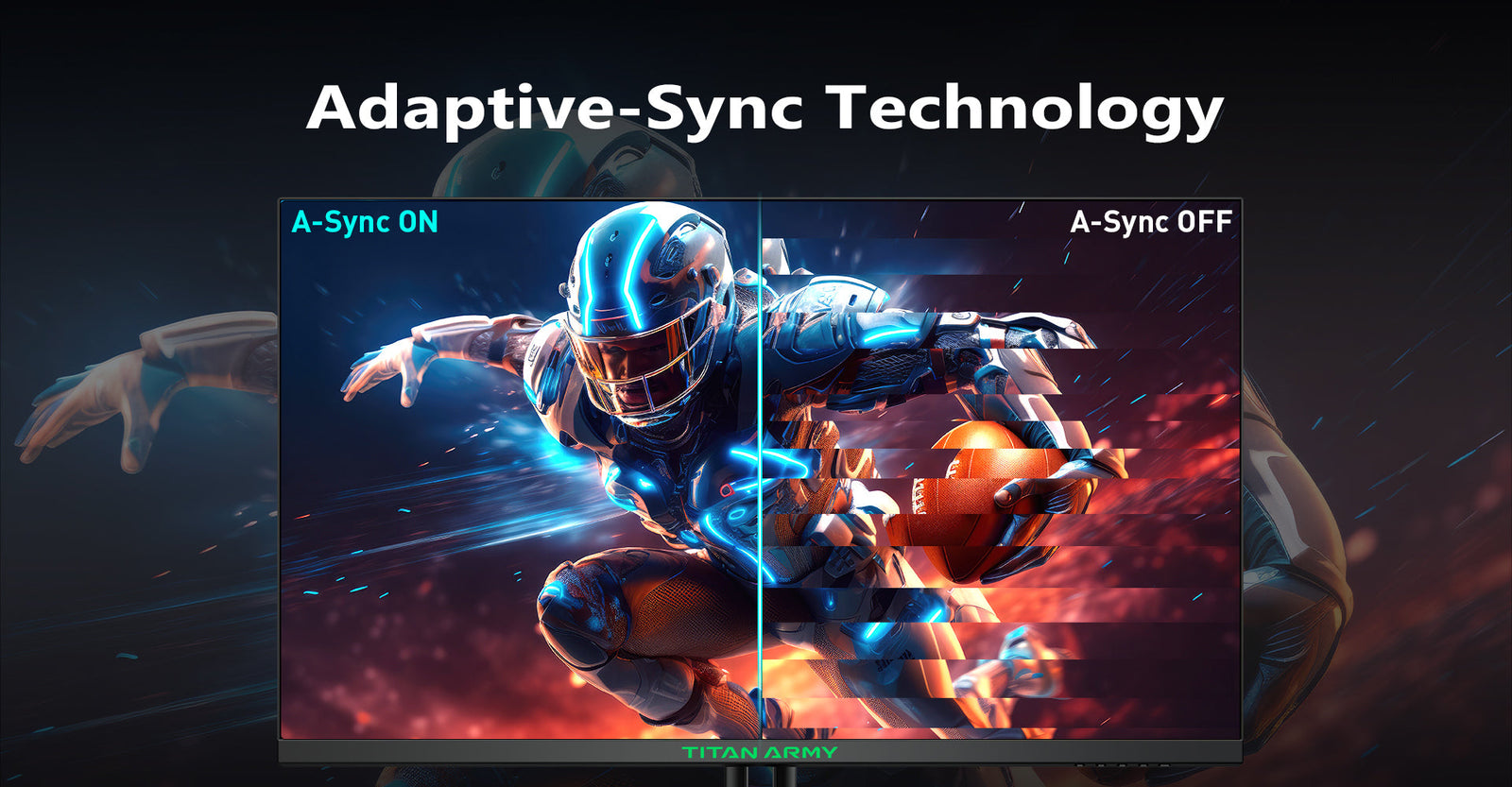
Screen tearing occurs when the GPU sends frames out of sync with the monitor’s refresh cycle. Stuttering happens when frame pacing becomes inconsistent. Both issues make gameplay feel less fluid.
Adaptive Sync helps by synchronizing the monitor refresh behavior with the GPU’s output. This is especially useful when frame rates fluctuate during demanding scenes.
To enable Adaptive Sync:
- Turn on Adaptive Sync in the monitor’s on-screen display menu.
- Enable variable refresh rate in the GPU control panel.
- Set the monitor to the desired display refresh rate.
- Use fullscreen or borderless mode depending on the game.
- Test fast movement to confirm tearing is reduced.
Adaptive Sync is valuable for both 4K gaming and high-refresh competitive play. At 4K, frame rates can vary depending on GPU load. At high refresh rates, consistent frame pacing makes motion feel smoother and more controlled.
On the TITAN ARMY P2712V, Adaptive Sync works as part of a broader gaming setup strategy: high refresh when speed matters, 4K clarity when immersion matters, and smooth frame delivery across both.
Step 7: Configure HDR Without Washing Out the Image
HDR can significantly improve visual depth, but only when configured correctly. Poor HDR setup may create gray blacks, dull colors, or overexposed highlights.
A good HDR gaming monitor setup requires:
- HDR support from the monitor
- HDR enabled in the operating system only when needed
- HDR enabled inside supported games
- Correct peak brightness calibration
- Proper black level adjustment
- Avoiding forced HDR for SDR content
The TITAN ARMY P2712V features HDR400 brightness, expanding brightness and contrast range for more detailed highlights and stronger visual impact. In supported games, this can improve scenes with sunlight, explosions, neon signs, reflections, and cinematic lighting.
However, HDR should not always stay on. For desktop work, web browsing, or SDR games, standard dynamic range may look more accurate. HDR is most useful when the game is designed for it.

Simple HDR Troubleshooting Guide
| Problem | Likely Cause | Adjustment |
|---|---|---|
| Image looks washed out | HDR enabled for SDR content | Disable HDR outside supported games |
| Highlights lose detail | Peak brightness too high | Lower in-game HDR brightness |
| Dark areas look gray | Incorrect black level | Adjust black level or contrast |
| Colors look unnatural | Oversaturation or wrong mode | Use a more accurate color preset |
HDR should add depth, not distortion. If the image looks less natural after enabling HDR, recalibration is needed.
Step 8: Reduce Eye Strain During Long Gaming Sessions
The best gaming monitor setup should protect visual comfort. Long sessions can cause eye strain when brightness, distance, flicker, and blue light are not controlled.
Common causes of discomfort include:
- Screen brightness that is too high in a dark room
- Blue light exposure late at night
- Glare from windows or desk lighting
- Flicker from unstable backlight behavior
- Sitting too close to the screen
- Poor posture caused by low monitor height
The TITAN ARMY P2712V includes upgraded eye care technologies to reduce screen flicker and blue light emission. These features are especially useful for long gaming sessions, streaming, video editing, or hybrid work.
For better eye comfort:
- Reduce brightness at night
- Use low blue light mode during evening sessions
- Take short breaks every 30–60 minutes
- Keep the display at a comfortable distance
- Avoid strong reflections on the screen
- Use height and tilt adjustments to maintain natural posture
Eye care modes may slightly warm the display. That is normal. For color-sensitive tasks, switch back to a more accurate color mode when needed.

Recommended Setup: TITAN ARMY P2712V Gaming Monitor
A modern gaming setup often needs one monitor to support multiple roles: competitive play, cinematic gaming, content creation, streaming, multitasking, and daily productivity. The TITAN ARMY P2712V Gaming Monitor is naturally suited to this flexible workflow.
Its feature set addresses the most important parts of gaming monitor setup: resolution, display refresh rate, motion clarity, color accuracy, HDR, eye comfort, and ergonomics.
Why the TITAN ARMY P2712V Fits a Modern Gaming Desk
Dual Mode Switching: 4K@160Hz / FHD@320Hz
Players can use 3840×2160@160Hz for cinematic games and content creation, then switch to 1920×1080@320Hz for competitive esports. This makes the P2712V more adaptable than single-purpose computer monitors.
Fast IPS Panel with Cinematic Colors
The Fast IPS panel improves motion clarity while maintaining vibrant color and wide viewing angles. With ΔE<2, 135% sRGB, 95% DCI-P3, and 1.07 billion colors, the display supports both gaming immersion and creative accuracy.
HDR400 Brightness
HDR400 enhances contrast and highlight detail for supported games, helping lighting effects, explosions, reflections, and cinematic scenes appear more dynamic.
Adaptive Sync
Adaptive Sync reduces tearing and stuttering by matching monitor refresh behavior with GPU output, making gameplay smoother across different frame rates.
12 Smart Scenario Modes
One-click scenario switching helps users move between FPS, RPG, racing, movie, reading, productivity, and other visual preferences without manual recalibration each time.
PIP/PBP Dual Host Display
Picture-in-picture and picture-by-picture support allow two sources to be shown on one screen. This is useful for PC-console setups, streaming workflows, creator desks, or productivity multitasking.
Ergonomic Adjustment and RGB Gaming Lighting
Tilt, pivot, height adjustment, and VESA mounting support long-term comfort, while RGB lighting adds gaming atmosphere to the setup.

Gaming Monitor Setup Checklist
Use this quick checklist after connecting a new gaming monitor:
- Confirm the monitor is using the correct cable and port
- Set native resolution in the operating system
- Select the highest supported display refresh rate
- Enable Adaptive Sync if supported
- Match brightness to room lighting
- Set contrast without clipping highlights
- Use neutral sharpness to avoid edge artifacts
- Choose 6500K or a natural color temperature
- Enable HDR only for supported content
- Select the right scenario mode for the game genre
- Adjust height, tilt, and distance for comfort
- Use eye care settings during long or late-night sessions
Conclusion
Setting up a gaming monitor correctly is one of the simplest ways to improve the entire gaming experience. The right calibration can make motion smoother, colors more accurate, HDR more natural, and long sessions more comfortable.
The most effective approach is to balance clarity, speed, and comfort. Use native resolution for sharpness, set the correct display refresh rate for fluid motion, enable Adaptive Sync for smoother gameplay, calibrate brightness and contrast for visibility, and adjust ergonomics to protect posture and eye comfort.
For players who want one display to handle both cinematic 4K gaming and competitive high-refresh esports, the TITAN ARMY P2712V Gaming Monitor offers a strong setup foundation. Its dual-mode switching, Fast IPS panel, HDR400 support, Adaptive Sync, smart scenario modes, PIP/PBP multitasking, ergonomic adjustment, and RGB lighting make it a flexible choice for modern gaming, productivity, and entertainment.
Expert FAQ
1. What is the best display refresh rate for gaming?
The best display refresh rate depends on the game type. 144Hz to 160Hz is excellent for smooth 4K gaming, while 240Hz to 320Hz is better for competitive FPS, racing, and esports. A dual-mode gaming monitor like the TITAN ARMY P2712V allows users to switch between 4K@160Hz and FHD@320Hz based on the game.
2. Are gaming monitors better than regular computer monitors?
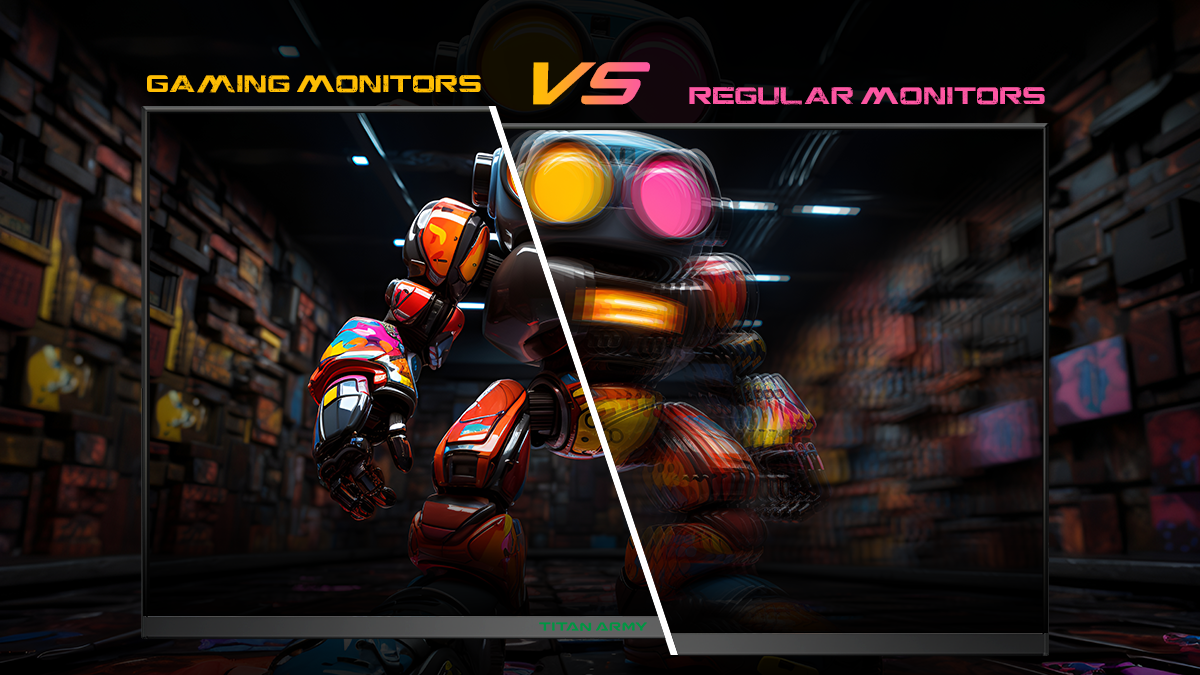
Gaming monitors usually offer higher refresh rates, faster response times, Adaptive Sync, game modes, better motion clarity, and more flexible visual settings than regular computer monitors. High-end models may also include wide color gamut, HDR support, ergonomic stands, and multitasking features like PIP/PBP.
3. Should brightness be high or low for gaming?
Brightness should match the room. A dark room usually needs lower brightness to reduce eye strain, while a bright room may need higher brightness for visibility. The best setting preserves shadow and highlight detail without making the image harsh.
4. Is 4K or high refresh rate better for gaming?
4K is better for visual detail, cinematic games, open-world titles, and content creation. High refresh rate is better for competitive gaming, fast camera movement, and lower perceived latency. The best choice depends on whether the player values image clarity or speed more.
5. How do I stop screen tearing on a gaming monitor?
Enable Adaptive Sync in the monitor menu and GPU control panel, then set the correct refresh rate in the operating system. Screen tearing can also be reduced by using frame rate caps or in-game sync options, but Adaptive Sync is usually the smoothest solution.